Guide / 6 min read / Klaviyo email design AI
Klaviyo Email Design with AI: 3 Ways That Work
Design Klaviyo emails with AI three ways: Klaviyo's own AI, HTML import, or a direct draft. The trade-offs, the import limits, and a pre-send checklist.
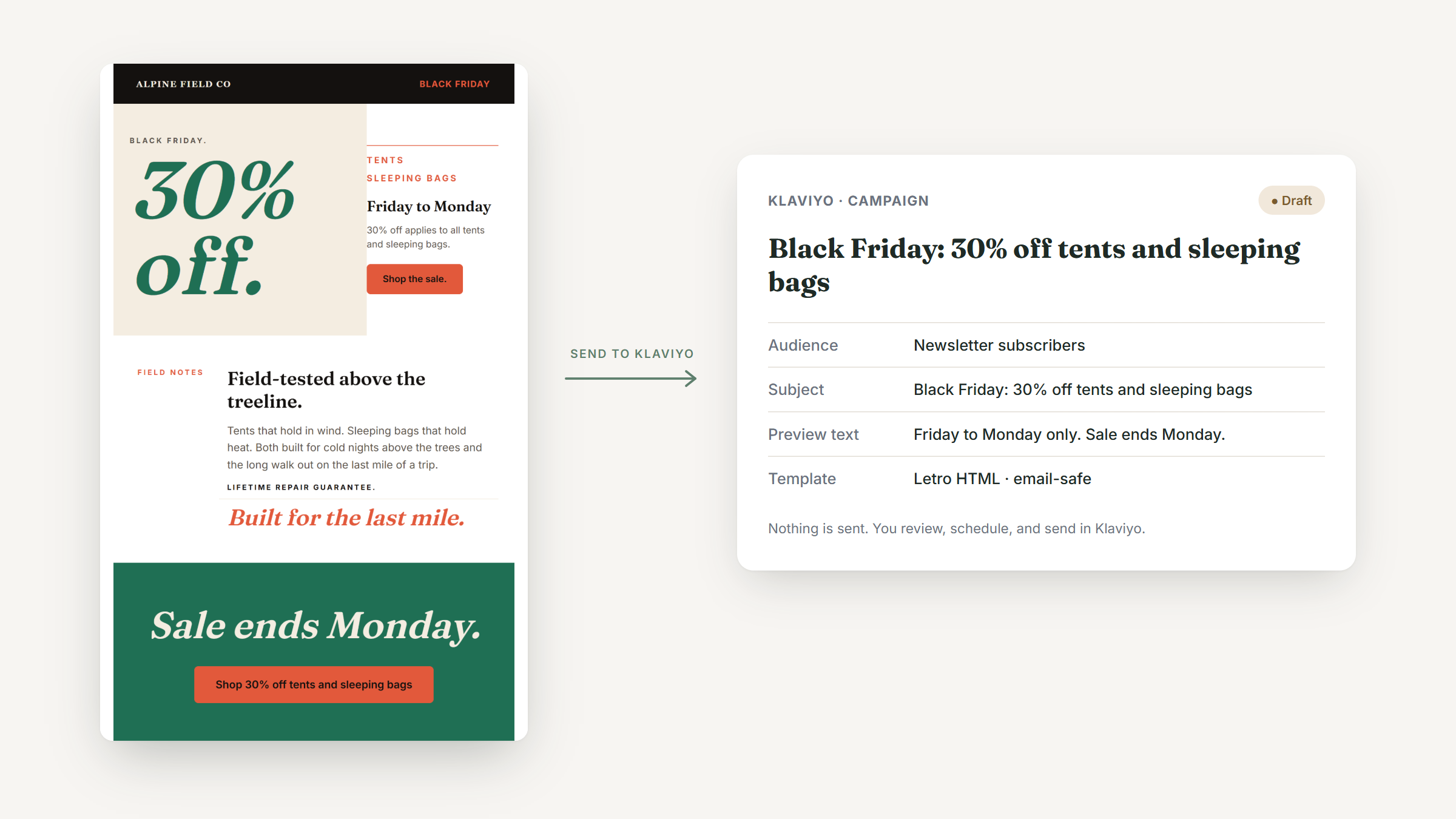
Klaviyo is where most DTC brands send email. It is excellent at lists, segments, flows, and attribution. Email design is a different story. The built-in drag-and-drop editor is reliable, but building a campaign that looks like your brand, not like a template, still takes hours per email.
AI can cut that time. There are three ways to bring AI into Klaviyo email design today, and each has a trade-off you should know about before Black Friday week, not during it.
Option 1: Klaviyo's built-in AI
Klaviyo has been adding AI across the product. Its AI email marketing tools include help with subject lines and copy, and Klaviyo describes newer agent features that draft emails from your brand voice, product catalog, and customer data. Feature names and availability change often, and some are in beta, so check what your plan includes.
Strengths:
- No extra tool. Everything stays inside Klaviyo.
- Native drag-and-drop blocks, so every part of the email stays editable.
- Direct access to your Klaviyo data: segments, products, and dynamic blocks.
Limits:
- Output is shaped by Klaviyo's block system and your existing templates. Distinctive layouts, the kind that make a campaign feel designed rather than assembled, are harder to get.
- The AI works inside one email at a time. Brand consistency across a busy week still depends on your templates.
If your current templates already look great, this is the simplest place to start.
Option 2: An AI email designer, then import the HTML
The second route is to design the email in a dedicated AI email designer, export the HTML, and import it into Klaviyo as a template.
This gives you far more design range. A tool built for email design can produce custom layouts, apply your full brand system, and output tested email-safe code. The trade-off is in how Klaviyo treats imported HTML.
- You import custom HTML as a template from Klaviyo's template library.
- Drag-and-drop editing works only in the spots where you place Klaviyo's block snippet in the code. The rest of the template is code-only.
- Converting a whole custom HTML template into native drag-and-drop blocks is not something Klaviyo supports directly, though Klaviyo offers an AI-assisted conversion you should review before sending.
The practical lesson: finish the design before it reaches Klaviyo. Treat Klaviyo as the place you choose the audience, schedule, and measure, not the place you rearrange sections. If you use an AI email designer with a visual editor, make your layout and copy changes there, then export once.
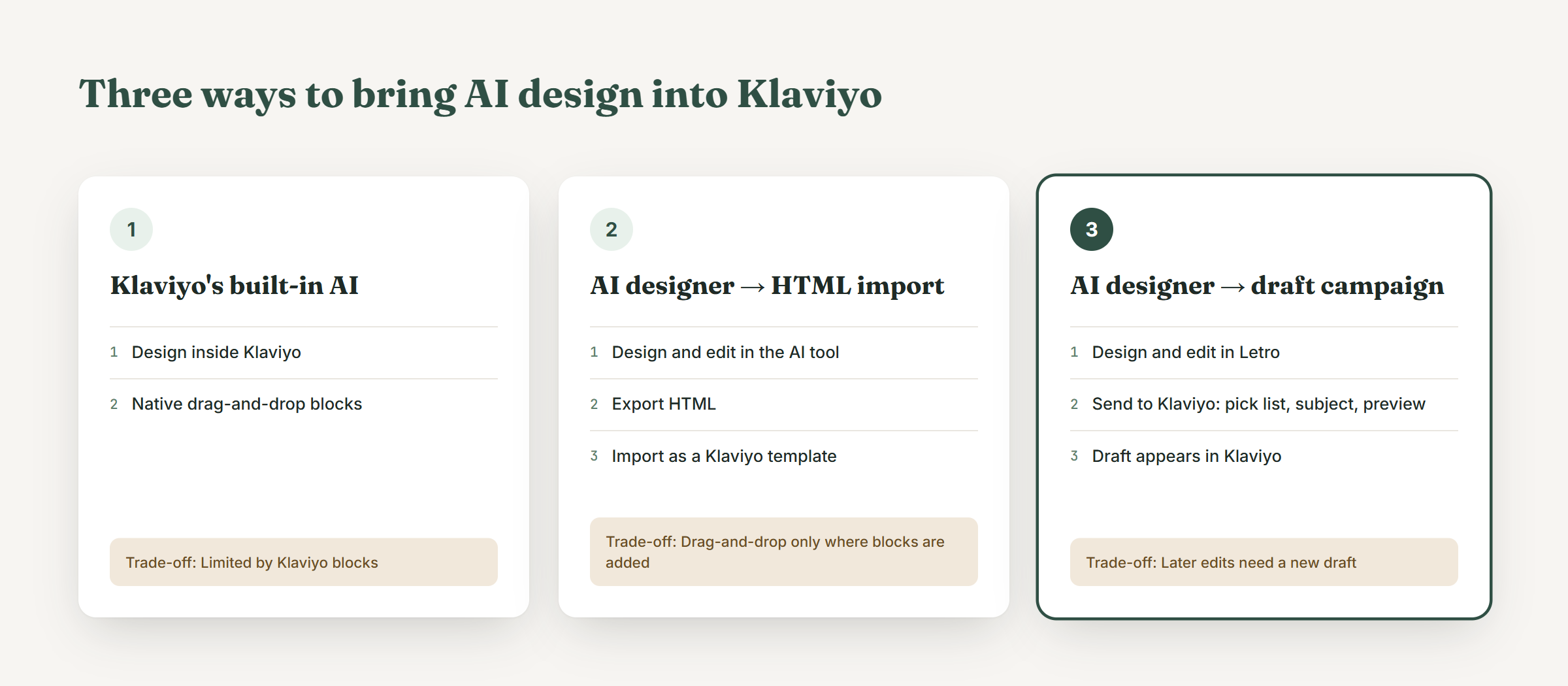
Option 3: Create the Klaviyo draft directly
Some AI email designers connect to Klaviyo and create the campaign draft for you, so there is no export, no file, and no import step.
In Letro, you connect Klaviyo once. Then, from any email, you choose Send to Klaviyo, pick a list or segment, and set the subject line, preview text, and sender name. Letro creates a draft campaign in your Klaviyo account. It does not send anything. You review, schedule, and send from Klaviyo as usual.
Two things to know:
- Later edits do not sync. If you change the email in Letro after creating the draft, the Klaviyo draft does not update. Create a new draft instead, and Letro shows you which version is in Klaviyo.
- Sending stays in Klaviyo. Scheduling, smart send time, A/B tests, and reporting all happen where they always have.
Before you send: the Klaviyo checklist for AI-designed emails
Whichever route you choose, run this check on every AI-designed email.
1. Unsubscribe link. Klaviyo uses template tags for unsubscribe links. The tag that gives a plain URL is {% unsubscribe_link %}, used inside a link: <a href="{% unsubscribe_link %}">Unsubscribe</a> (Klaviyo help). Klaviyo says it adds an unsubscribe link automatically when it does not find one, but check your footer so the link sits where you designed it.
2. Personalisation tags. If you want a first name or other profile data, add Klaviyo's tags in Klaviyo. Do not trust placeholder text from an AI tool to match Klaviyo's syntax.
3. Real offers and links. Check every price, percentage, date, and button link. A good AI tool only uses offers you gave it, but a second look before a sale is cheap insurance.
4. Preview and test. Use Klaviyo's preview and send tests to Gmail, Outlook, and a phone, in light and dark mode.
5. Image hosting. Make sure every image loads from a public URL. AI-generated and uploaded images must be hosted, not embedded in the code.
Which option should you choose?
| Klaviyo's AI | AI designer + HTML import | AI designer + direct draft | |
|---|---|---|---|
| Design range | Limited by Klaviyo blocks | Full custom layouts | Full custom layouts |
| Edit in Klaviyo | Fully, drag-and-drop | Code, or only where blocks are added | Code; edit in the designer and re-send instead |
| Brand consistency | Depends on your templates | Brand profile applied every email | Brand profile applied every email |
| Steps to Klaviyo | None | Export, import, create campaign | One click, then review |
| Best for | Teams happy with their current templates | Any ESP, not only Klaviyo | High-volume Klaviyo senders |
Many teams use more than one: Klaviyo's own blocks for flows that need dynamic product feeds, and an AI email designer for campaigns where the design has to stand out.
How to design a Klaviyo campaign in Letro
1. Set up your brand. Add your website under Brand. Letro reads your logo, colours, and fonts and applies them to every email.
2. Add product and offer facts. Upload your catalog and current offers to Brand → Knowledge. Letro uses only the offers you give it.
3. Describe the campaign. One line is enough: "Back-in-stock email for our linen collection, for past buyers." Letro's AI campaign strategist plans the sections, and the design pass builds the email on-brand.
4. Refine visually. Click any block to edit it, or select it and ask the chat to change only that block.
5. Send it to Klaviyo. Create a draft campaign with Send to Klaviyo, or use Export to download HTML and import it yourself.
6. Finish in Klaviyo. Check the unsubscribe link and any personalisation tags, preview, test, and schedule.
FAQ
Can I use AI to design Klaviyo emails?
Yes. You can use Klaviyo's built-in AI tools, or design the email in an external AI email designer and either import the HTML into Klaviyo or let the tool create a draft campaign for you.
Can I edit imported HTML templates in Klaviyo's drag-and-drop editor?
Only partly. Klaviyo makes imported HTML editable with drag-and-drop only where you add its block snippet. The rest stays as code. Make your design changes before importing.
How do I add an unsubscribe link to a custom HTML email in Klaviyo?
Use Klaviyo's tag inside a link: <a href="{% unsubscribe_link %}">Unsubscribe</a>. Klaviyo says it adds an unsubscribe link automatically when none is found, but placing it yourself keeps your footer design intact.
Does Letro send emails through Klaviyo?
No. Letro creates a draft campaign in your Klaviyo account with the audience, subject, and preview text you choose. You review, schedule, and send from Klaviyo.
Does Letro work with ESPs other than Klaviyo?
Yes. Export HTML or MJML and import it into Mailchimp, Brevo, Customer.io, Postmark, Resend, SendGrid, or any ESP that accepts custom HTML.